Your Guide to Sprite Sheet Animation
So, you're ready to make your game characters leap off the screen? That's where the real magic happens, and it's all thanks to sprite sheet animation. This is the secret sauce that turns your static drawings into living, breathing characters full of action and personality. At MakeGamesWithAI, we help creators build entire games with simple text prompts, and sprite sheets are the visual engine that powers the amazing community creations you can see on our games page.
Think of it like a digital flipbook, but way more efficient. All your character's moves—every jump, punch, and idle animation—are laid out on a single image.
Breathing Life into Your Game's Heroes
If you've ever fallen in love with a classic 2D platformer or poured hours into an arcade shooter, you've witnessed the power of sprite sheets firsthand. It’s the engine that drives 2D game animation, letting the game rapidly cycle through images to create that perfect illusion of movement.
And honestly, getting started is easier than you might think. With MakeGamesWithAI.com, you can dive right in. Our AI-powered editor lets you generate and apply animations in a snap, so you can spend less time wrestling with technical details and more time making your game awesome.
So, Why Are Sprite Sheets a Big Deal?
The concept is brilliantly simple. Instead of forcing your game engine to load dozens of separate image files just for a single run cycle, you give it one. That single file, the sprite sheet, holds every frame of the animation, all neatly lined up in a grid. This isn't just for neatness; it's a massive win for performance.
- Blazing Fast Performance: It's way easier for a computer to load one big image than a whole bunch of small ones. This cuts down on something called "draw calls," which are notorious performance hogs.
- Sanity-Saving Organization: Imagine trying to manage 30 different files for one character's attack combo. Now imagine just one. See? Keeping all the frames for an animation together makes your project files infinitely cleaner.
- Smoother Animation Control: When all your frames are on a single texture, the game engine can pinpoint exactly which part of the image to display at any moment. This makes coding the animation logic a whole lot simpler.
Before we get into the nitty-gritty, let's get our terms straight. These are the core concepts you'll hear about all the time when working with sprite sheets.
Sprite Sheet Animation Core Concepts
| Term | What It Means | Why It Matters |
|---|---|---|
| Sprite | A single 2D image or character. Think of your player, an enemy, or a pickup. | It's the basic building block of your game's visual world. |
| Frame | One individual image in an animation sequence (e.g., one step in a walk cycle). | The more frames you have, the smoother your animation can be. |
| Sprite Sheet | A single image file containing multiple frames of an animation laid out in a grid. | This is the key to efficient animation, reducing load times and simplifying asset management. |
| Atlas | A larger image containing multiple sprite sheets, often for different characters or objects. | Think of it as a master sheet for your game's art. It's the ultimate performance booster. |
Getting a handle on these terms will make the whole process feel much more intuitive as you start building out your animations.
At its heart, a sprite sheet is the master key to your character's personality. Every jump, attack, and idle animation is stored on one canvas, giving you an organized, high-performance way to tell your game's story through movement.
This technique isn't new—it was born out of necessity back in the 1980s when hardware was incredibly limited. The original Nintendo Entertainment System, for instance, had just 2 KB of RAM for graphics! Developers had to get creative, so they packed animation frames onto single images, which was up to 50% more efficient than using separate files. Those early pioneers laid the groundwork for how we still do things today.
Ultimately, getting comfortable with sprite sheet animation is a must for any 2D game developer. It directly shapes how your game feels, which is absolutely crucial in genres like platformers where timing is everything. If you're heading down that path, you should check out our deep dive on how to make a platformer game. We'll walk you through everything, from the core concepts all the way to a finished, playable prototype.
Crafting Your Animation Frame by Frame
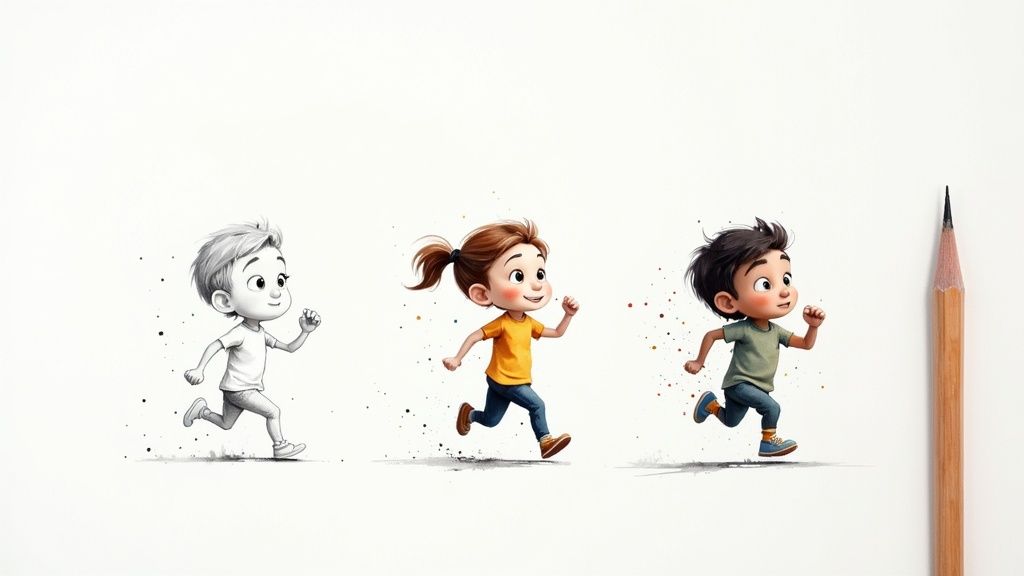
Alright, this is where the magic really happens. We're about to take that awesome character concept you've been dreaming up and breathe life into it, one image at a time. Each drawing is what we call a frame. When you string these frames together and play them back, you get that glorious illusion of movement.
But hold on. Before you even think about drawing a single pixel, you need the right tool for the job.
If you're eager to see results without all the manual labor, the conversational editor over at MakeGamesWithAI.com is a game-changer. You can literally just tell it what you want—like "a knight swinging a sword"—and our AI will whip up a complete sprite sheet for you. It's an incredible way to quickly prototype ideas or just get some placeholder art in your project.
Choosing Your Creative Weapon
Your choice of software is a big deal; it’s going to define your whole workflow. Don't fall into the trap of thinking you need the most expensive tool on the market. The best one is simply the one that feels right to you.
Here are a few of my go-to recommendations:
- Aseprite: Let's be honest, this is the undisputed king of pixel art. It’s affordable and absolutely jam-packed with features made specifically for animators, like onion skinning (so you can see your last frame) and killer layer management. It was built from the ground up for this kind of work.
- Piskel: This is a fantastic free, browser-based tool. If you're just dipping your toes into pixel art and don't want to commit to anything, Piskel is simple, intuitive, and gets the job done.
- Adobe Photoshop: The old industry giant. It’s a beast for digital painting, but I find its animation tools can feel a bit bolted-on and clunky for precise sprite work. It's a perfectly fine option if you already own and know it, but probably overkill for most.
Personally, I still love starting with rough sketches on paper to get the key poses just right before I even open up Aseprite. Find a process that lets you experiment and iterate without friction.
The secret to great animation isn't the software—it's understanding movement. Your goal is to create frames that don't just depict an action but also convey weight, personality, and emotion.
Building Believable Movement
Once you've settled on a tool, it's time to animate. Creating a snappy attack combo is a totally different beast than a subtle idle animation, but both depend on the same core principles to look and feel right.
First, set up your canvas. Pick a consistent size for every frame, something like 64×64 pixels, and make sure you leave some empty space around your character. This padding is super important because it stops parts of your character from getting awkwardly chopped off when they move. Also, get comfortable using layers. Separating body parts—arms, legs, head—makes it a thousand times easier to tweak one little thing without having to redraw the entire character.
Now, let's inject some personality. The classic "squash and stretch" principle is your new best friend. When a character jumps, they should "squash" down first to build up energy, then "stretch" out as they launch into the air. It’s a simple trick, but it adds a sense of real-world physics and impact.
Timing is everything, too. Don't just space your frames out evenly like a robot. You can hold a key pose for an extra frame or two to give it more weight, or blast through a few transitional frames in a flash to create a sense of speed. This deliberate variation in pacing is what separates stiff, amateurish movement from fluid, professional-grade animation.
Assembling the Perfect Sprite Sheet
Alright, you've done the hard part—you've meticulously drawn every single frame of your animation. Now comes the technical bit: wrangling all those individual images into a single, efficient texture atlas, more commonly known as a sprite sheet. This part is less about art and more about smart organization, but trust me, getting it right now will save you a mountain of pain later.
Think of it like packing a suitcase for a trip. You could just shove everything in there and hope for the best, or you can fold and arrange everything neatly. A well-made sprite sheet is that perfectly packed suitcase—everything is easy to find, and you've made the most of the space you have.
Sure, you could manually drag and drop every frame into a grid in Photoshop. But that's a one-way ticket to a headache and tiny, infuriating alignment errors. Thankfully, there are tools built specifically for this job. They’ll take a whole folder of your frames and stitch them together into a flawless atlas automatically. Here at MakeGamesWithAI, we take it a step further by handling all this asset magic for you, but it’s still crucial to understand what’s happening under the hood.
And if you're just starting out and need some raw materials to practice with, check out our guide to finding free 2D game assets.
The Best Tools for the Job
Manually lining up pixels is nobody's idea of a good time. A dedicated tool doesn't just make the process faster; it ensures every frame is perfectly positioned with consistent spacing, which is absolutely critical for smooth sprite sheet animation.
Here are a couple of my go-to options:
- TexturePacker: This is the industry workhorse for a reason. It’s incredibly powerful, letting you automatically trim transparent pixels, add padding, and spit out a data file that tells your game engine exactly where each frame is. It's a paid tool, but for any serious project, the time it saves is easily worth the cost.
- Built-in Engine Tools: Why look elsewhere when your game engine might already have what you need? Unity's Sprite Atlas feature and Godot's import system can pack your sprites on the fly. This is a huge win because it keeps everything neatly inside your project workflow.
The goal isn't just to jam images together. It's to create an optimized texture that your GPU can chew through without breaking a sweat. A good tool doesn't just assemble—it optimizes.
Export Settings That Prevent Glitches
Once your frames are laid out, you have to export the final image. This is where a few simple settings can mean the difference between a crisp animation and a glitchy mess.
The most common gremlin you'll encounter is texture bleeding. This is when a sliver of a neighboring frame peeks through, causing a nasty flicker or a thin line along the edge of your sprite. It happens because of how the GPU samples textures, sometimes rounding a coordinate just enough to grab a pixel from the next frame over.
Luckily, the fix is pretty simple. You need to add padding and margins:
- Padding: This is just the empty space between each individual frame on your sheet. A tiny bit goes a long way. Adding just 1-2 pixels of padding is usually all it takes to keep your frames from stepping on each other's toes.
- Extrude/Border: A more advanced (and foolproof) technique. Some tools can "extrude" the border pixels of each sprite, essentially stretching the edge colors into the padding area. This gives the GPU a buffer, ensuring that even if it samples slightly outside the frame, it still gets the right color.
As for the file format, PNG is your best friend. It gives you lossless compression (no ugly artifacts) and, most importantly, it supports transparency. For 99% of game sprites, a transparent background is non-negotiable. Nailing these little technical details is what separates amateur-hour graphics from a polished, professional-looking game.
Bringing Your Sprites to Life in a Game Engine
Alright, you’ve put in the work and have a beautiful sprite sheet ready to go. Now for the fun part: making it actually move inside your game. This is where your static drawings stop being just art and start becoming a character with life and personality.
The basic idea is simple. We're going to import that big image, tell the game engine how to chop it up into individual frames, and then string those frames together to create animations.
If you're itching to get straight to the action, the asset library at MakeGamesWithAI.com is a great way to jump the queue. You can grab pre-made sprite sheets and animations, plug them into your project, and see your characters running around in minutes instead of hours. It’s a fantastic way to prototype or just get a feel for the process.
The whole workflow, from individual drawings to a game-ready asset, is pretty straightforward once you get the hang of it.
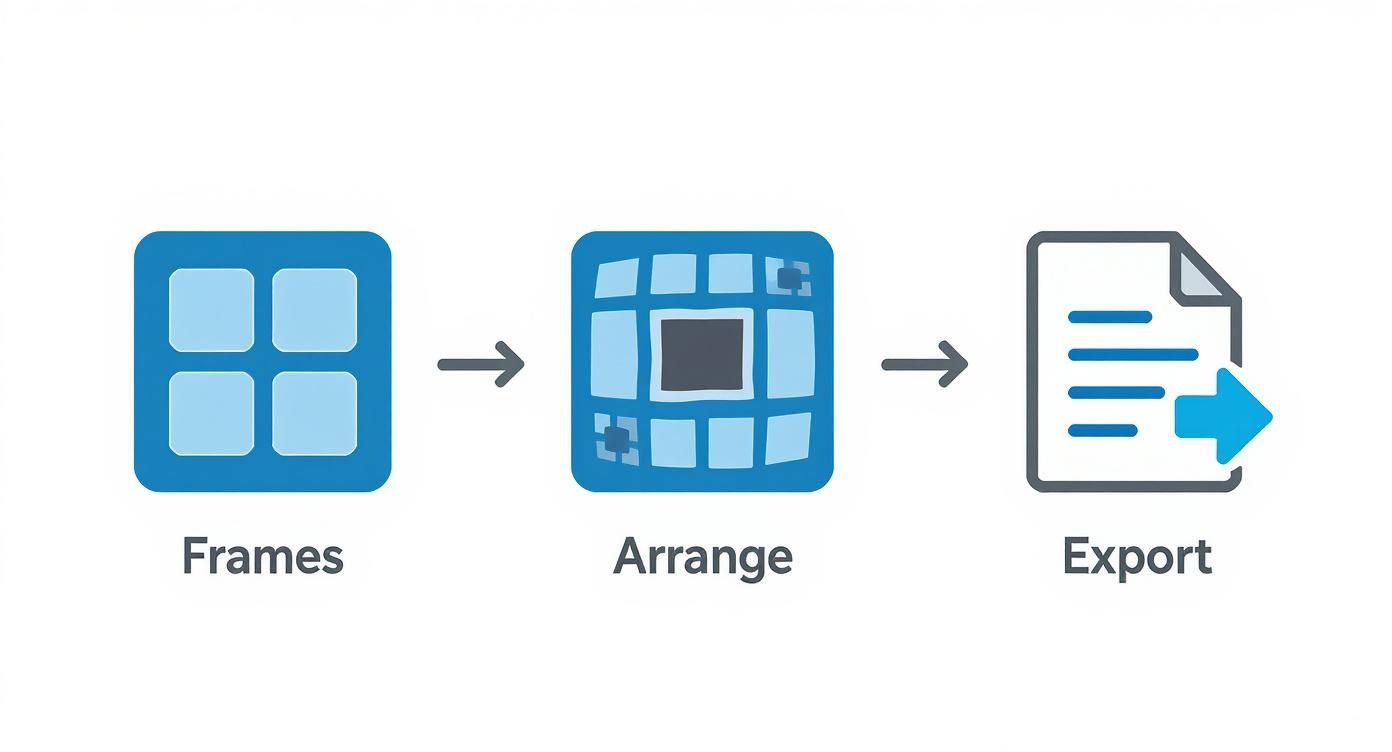
As you can see, it’s all about creating the frames, laying them out in a neat grid, and exporting that single image. Keeping things organized this way makes life so much easier for your game engine and helps you avoid frustrating import headaches down the line.
Chopping Up the Sprite Sheet
Once your sprite sheet is imported into your game engine of choice, the first order of business is to "slice" it. The engine sees a single, big picture; you need to tell it where each little frame lives. Thankfully, you don't have to do this with digital scissors.
Most modern engines have fantastic built-in tools for this. You just tell it the size of a single frame (say, 64×64 pixels), and it overlays a grid, automatically divvying up the sheet into a neat collection of animation frames. This is the foundational step for any sprite sheet animation. Get this right, and everything else flows smoothly.
Building Your Animation Clips
With your sheet all sliced up, it’s time to play director. You can now assemble these individual frames into "animation clips," which are essentially the specific actions your character will perform. Think of it like creating a flip-book. For a "player_run" animation, you might grab frames 1 through 8 and drop them onto an animation timeline.
You’ll repeat this process for every single action your character needs:
- Idle Animation: What does your character do when you’re not touching the controls? A little bounce? A deep breath? This clip usually loops forever.
- Attack Animation: A quick, satisfying sword swing or punch. This one should only play once every time the player hits the attack button.
- Jump Animation: This is often a multi-part sequence: the initial leap, the mid-air hang, and the landing.
These clips are the vocabulary of your character's movement. Your code will be the brain that tells the character which clip to play and when.
Here's a pro-tip: The real soul of an animation isn't just the drawings, but the timing. A one-second run cycle with 12 frames feels completely different—much snappier and more energetic—than the same cycle with only 6 frames. Don't be afraid to experiment.
Nailing the Frame Rate and Looping
Last but not least, you’ve got to configure the playback settings. The frame rate (or FPS) controls how fast the animation plays. A high frame rate gives you fluid, speedy motion, while a lower one can feel more methodical or even choppy (which can be a stylistic choice!).
Getting the feel right is all about tweaking these numbers. A frantic combat flurry might look great at 30 FPS, but a gentle, sleepy idle animation for an NPC might be perfect at just 8 FPS. You’ll also set whether an animation should loop (like a walk cycle) or play just once and stop (like a death animation).
These simple toggles are what inject rhythm and personality into your game. Every engine handles the specifics a bit differently, so it pays to get familiar with your toolset. If you're still deciding on a platform, check out some of the best 2D game engines to find a workflow that clicks with you.
Level Up Your Animation Game: Advanced Tricks for a Pro Polish
Alright, so you’ve got a basic run cycle going. That’s a huge first step! But let's be honest, it’s the little details, that extra spark of life, that separate good animations from truly unforgettable ones. This is where we stop just making things move and start making them feel alive. It's all about layering simple techniques to create surprisingly complex and engaging behaviors.
If you're looking for inspiration, the best way to start is by seeing what others have cooked up. Head over to the MakeGamesWithAI.com gallery and check out some community-made games. You’ll see a ton of clever tricks and unique ways people bring their characters to life. It’s a fantastic way to get your own creative gears turning.
One of the most powerful concepts you’ll ever learn in game animation is the Animation State Machine. It sounds way more complicated than it is, I promise. Think of it as a visual flowchart for your character's brain. It lays out all the rules for switching between animations—like going from a "run" to a "jump" the instant the player hits the spacebar. This is the secret to making characters feel responsive and connected, completely eliminating those awkward, jerky transitions.
Boosting Performance and Adding Visual Flair
As you start layering in more cool animations and visual effects, you'll eventually hit a wall: performance. A game that stutters is no fun, no matter how great it looks. This is where a bit of technical know-how goes a long way.
A killer technique here is atlas packing. Basically, you take all your separate sprite sheets—for the player, enemies, items, UI bits—and cleverly cram them all onto one giant texture.
So, why bother? Every single texture in your game requires a "draw call," which is basically your game asking the graphics card to draw something. These calls add up fast. By packing everything into a single atlas, you can slash those draw calls from potentially dozens down to just one or two. That’s a massive performance boost, especially for mobile games.
The real magic of game animation is where the technical meets the creative. A perfectly optimized sprite sheet is something the player will never notice, but the buttery-smooth, glitch-free experience it creates is something they'll never forget.
Now for the really fun stuff: adding that extra flair. You can make your animations feel incredibly impactful by triggering events on specific frames.
- Particle Effects: Want a jump to feel weighty? Spawn a puff of dust particles on the exact frame your character’s feet land.
- Sound Triggers: A sword swing feels weak without a sound. Time a sharp "swoosh" effect to play precisely when the blade is at its fastest point.
- Camera Shake: To give a heavy attack that bone-crunching feel, add a tiny camera shake for a single frame right at the moment of impact.
It's these tiny, perfectly synchronized details that sell the whole illusion. They weave together your visuals, sound, and gameplay into one cohesive experience, turning a simple sprite sheet animation into a moment that players will really feel.
Common Questions About Sprite Sheet Animation
Even with the best tools in your arsenal, you're going to hit a few snags with sprite sheet animation. It's just part of the process. Let's tackle some of the most common questions I hear, so you can solve problems before they even start.
Honestly, a great way to sidestep a lot of these issues is to use a tool that does the heavy lifting for you. For instance, the conversational editor at MakeGamesWithAI can spit out entire sprite sheets from a simple text prompt. It's a game-changer for getting ideas off the ground fast.
What Is the Best Size for a Sprite Sheet?
Ah, the million-dollar question. There’s no single magic number here, but the golden rule is to stick to dimensions that are a power of two. We’re talking sizes like 512×512, 1024×1024, or 2048×2048 pixels. Why? Because graphics cards are built to handle these sizes incredibly efficiently, which means better performance and fewer bizarre visual bugs.
Think about your target platform. If you're building a simple mobile game, a 1024×1024 sheet will probably do the trick. But for a high-res PC game with a ton of detailed character animations, you might find yourself needing a few beefy 2048×2048 sheets. Let the hardware guide your decision.
The perfect sprite sheet size is always a balancing act between image quality and performance. My advice? Go with the smallest power-of-two dimension that fits all your frames without turning them into a blurry mess.
How Do I Make My Animations Feel Smoother?
That silky-smooth feel comes down to two things: more frames and smart timing. The obvious first step is adding more "in-between" drawings. More frames almost always make a movement look less choppy and more fluid.
But the real secret sauce is in the timing. Don't just play every frame back at the same speed. Let a key pose hang for an extra beat to give it weight and impact. Then, zip through the transitional frames to create a sense of speed. This is where classic animation principles like "ease-in" and "ease-out" come into play—they make your animations feel alive, not robotic.
Can AI Create Sprite Sheet Animations?
You bet it can. And frankly, it's a massive shortcut for modern game devs. AI is completely shaking up how we create game assets.
Platforms like ours let you generate entire animation cycles just by describing what you want. For example, you can tell our AI, "create a slime monster jumping animation," and it'll hand you a ready-to-use sprite sheet in seconds. This frees you up to focus on the fun stuff—like game design—instead of getting lost in the tedious grind of drawing frame after frame.
Ready to bring your own game ideas to life without all the usual headaches? With MakeGamesWithAI, you can build a fully playable game just by describing it. See how fast you can create your own game.